After login, you will already be logged in. Head to the ‘Account’ page.
If you ever need to log in again, access the platform via the ‘Log In’ page. This is also located at the bottom of every page along with the ‘Log Out’ page. (See image below).
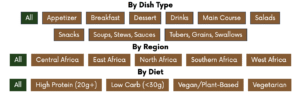
Filter by Dish Type, Region in Africa and Diet Type.
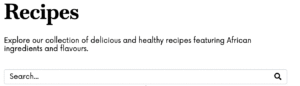
Search for recipes using key words in the search bar.
Recipe boxes contain information on ingredients, recipes, equipment required, total time, dish type as well as nutritional information (calories and macros etc.) at the bottom of each box.
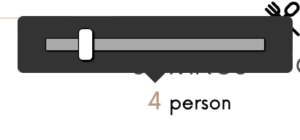
You can adjust serving sizes by either clicking on the 1x, 2x, 3x buttons to double, or triple the recipe quantity or by sliding the number under the servings heading. Quantities for ingredients automatically adjust but not for the instructions as we do not have the functionality to do this just yet. (See images below)
3. Meal Planner
The Meal Planner is a space for you to create your own meal plans or freely organise your saved recipes in weekly meal plans. For example you can:
Create your own daily or weekly meal plans
Organise by Meal Type e.g. breakfast, lunch, dinner
Organise by ingredient e.g. ‘Plantain Recipes’
Organise by occasion e.g. dinner parties.
You can do whatever you want!
There are three ways to use the builder.
Save your favourite recipes via the ‘Meal Planner’ page.
Once you click on the page, only your collections (meal plans) show, not anyone else’s.
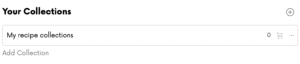
Click on ‘My Recipe Collections,’ ‘Add collection’ or the + icon on the right to create your own recipe collection.
‘My Recipe Collections’ is a default collection ready for you. You can open it and customise the name to create your own collection.
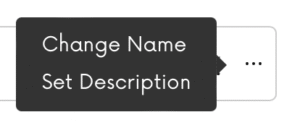
You can edit the name of the recipe collection by clicking the three dots in the corner. (See below).
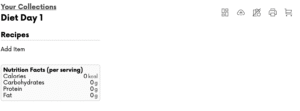
In our example below, we changed the recipe collection name to ‘Diet Day 1’.
Click the box to open the recipe collection where you can add recipes for 1 day’s plan. As in the image below, the total calories will be calculated via the nutrition box below when you add recipes from the database.
Click ‘add items’ via the recipe box to add recipes from our database.
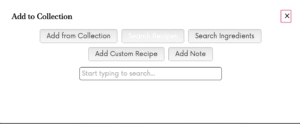
Once you click ‘Add recipe’ a box will appear where you can do the following:
Add from collection – add recipes from a previous collection e.g. duplicate a meal plan from another day.
Search Recipes – add recipes from the database.
Search Ingredients – search by ingredient and add recipes from the database.
Add Custom Recipe – add your own recipe which may not be in the database so that you can calculate the nutrition stats.
Add Note – add whatever notes, instructions or reflections.
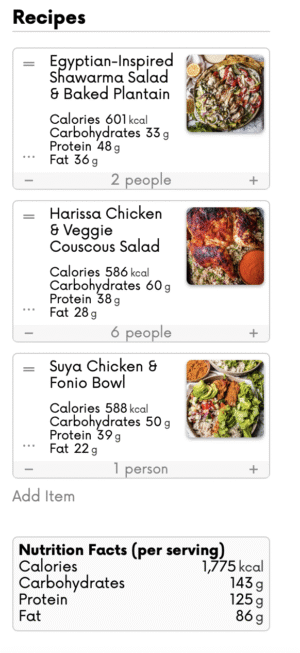
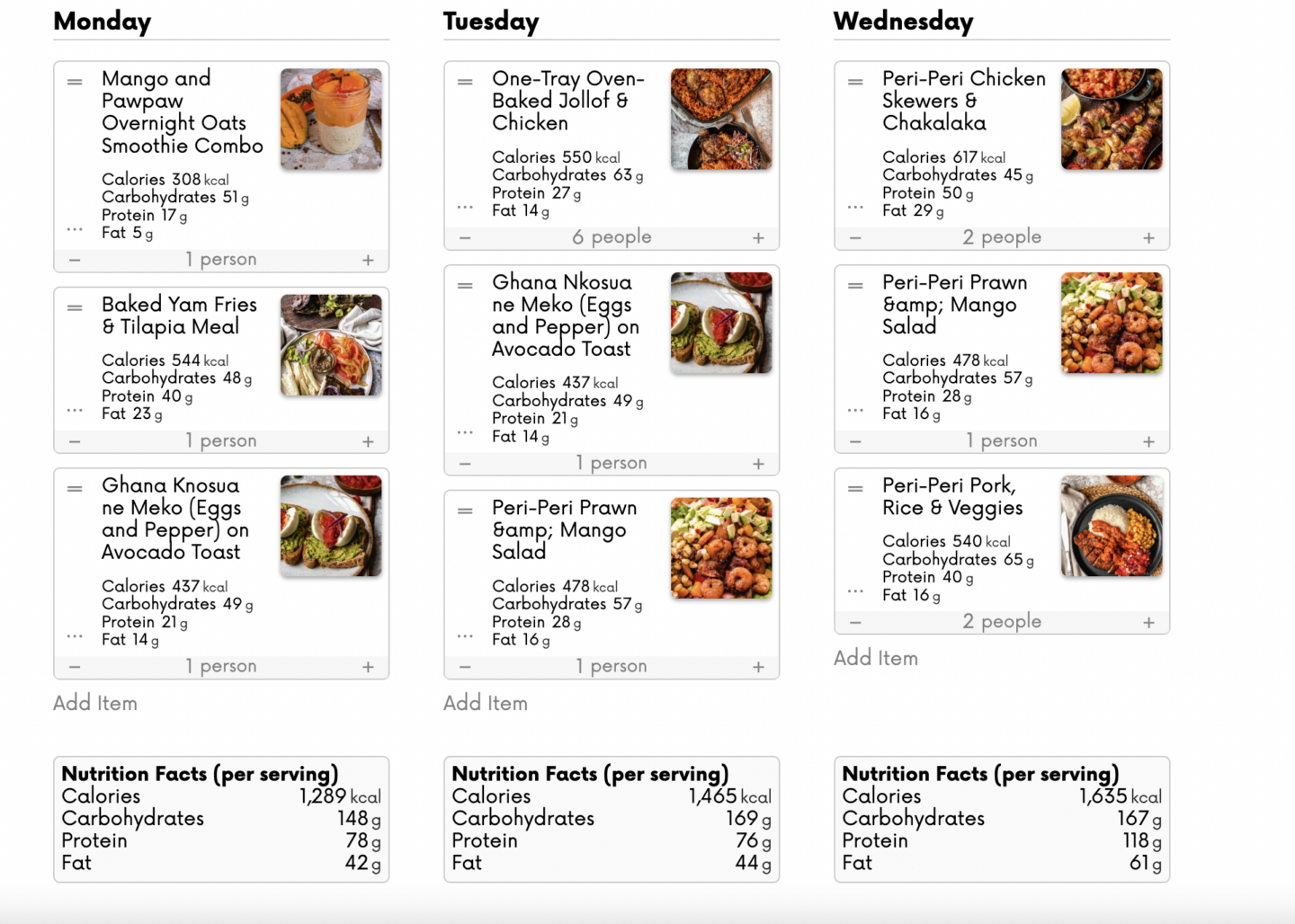
Once you add recipes they will appear in your collection for that day with your total calories and macros for the day at the bottom.
The text under each recipe saying, “2 people” etc. reflects the original serving size for each recipe however the calories and macros that show in the box are for only one serving. The ‘-‘ and ‘+’ options under each recipe do not adjust the quantities for now nor does the function to increase serving sizes. we apologise for this as we are working to improve the technology in this area. If you want to increase a serving size, you can duplicate the recipe by clicking the three dots ‘…’ in the bottom left corner of the box to show how many servings you are adding for the day for that specific recipe. (See image below)
The icons on the top right corner are where you can:
Change Collection Structure- clear all items in the collection, change the name or description.
Share Collection- share the collection with another member.
Hide Nutrition Facts- in case you don’t care about the stats!
Print- Print the recipe collection
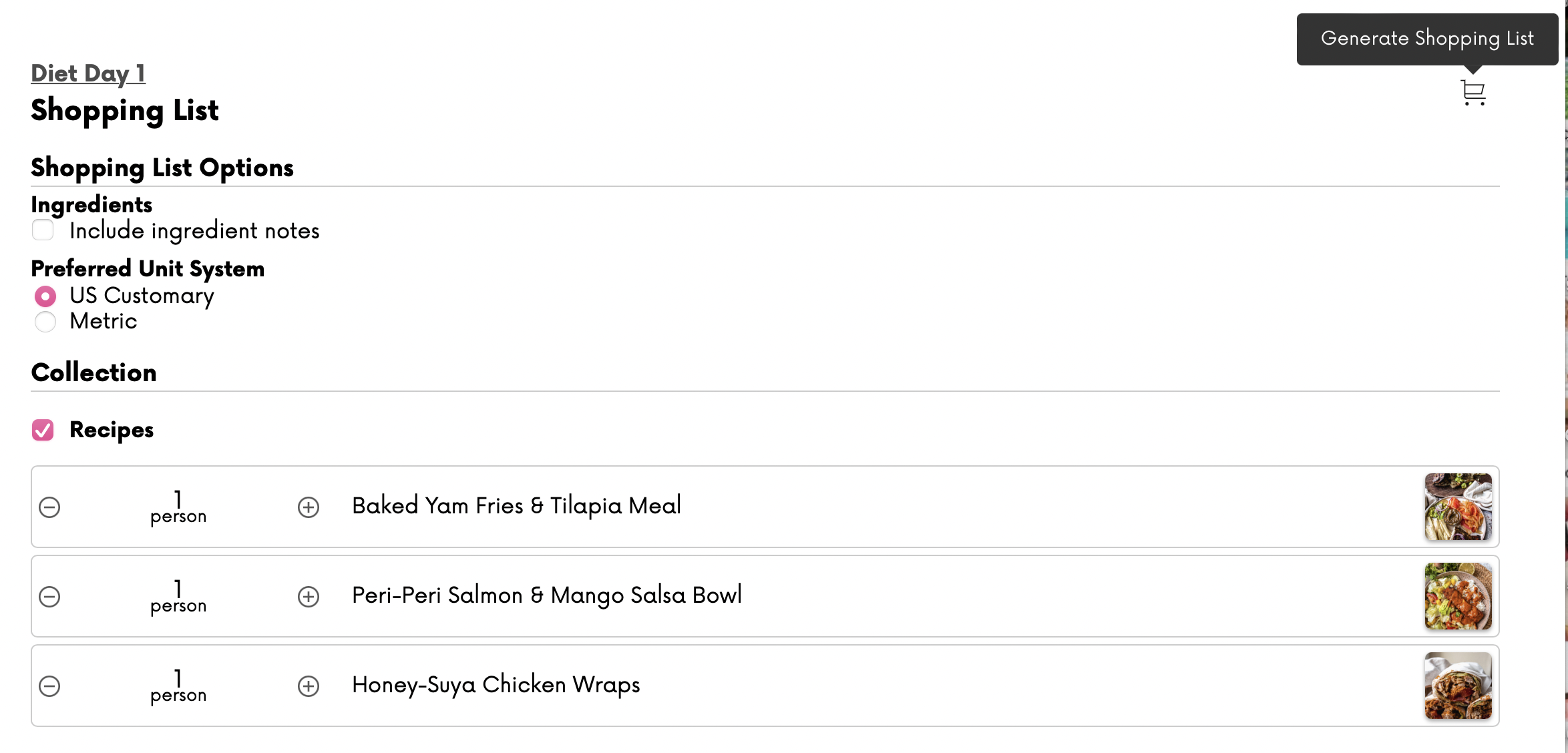
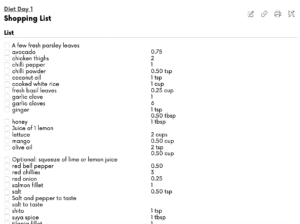
Shopping list- A shopping list is automatically generated for the collection. Quantities are adjusted according to quantities of each recipe portion. Click ‘Generate Shopping List’ in the corner to generate a list from the recipes you saved in your collection. When you open your shopping list you can edit, share, print or regenerate.
Create recipe collections/meal plans via an individual recipe
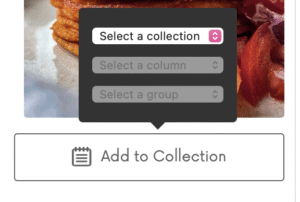
When you click on a recipe, go to the recipe box and click the ‘Add to Collection button.’ (See image below). Here you can select a recipe collection/meal plan to add to or create a new collection. You can also go straight to collections from the recipe after you add it to a collection.
Create Weekly Meal Plans Using Our Weekly Meal Plan Template
You can create weekly meal plans with day-of-the-week templates using the weekly meal plans template. Here’s how to do it.
1. Open your list of recipe collections.
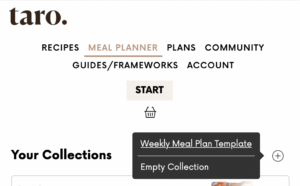
2. Click ‘Add Collection’ + icon and it will show an option for a ‘Weekly Meal Plan Template’.
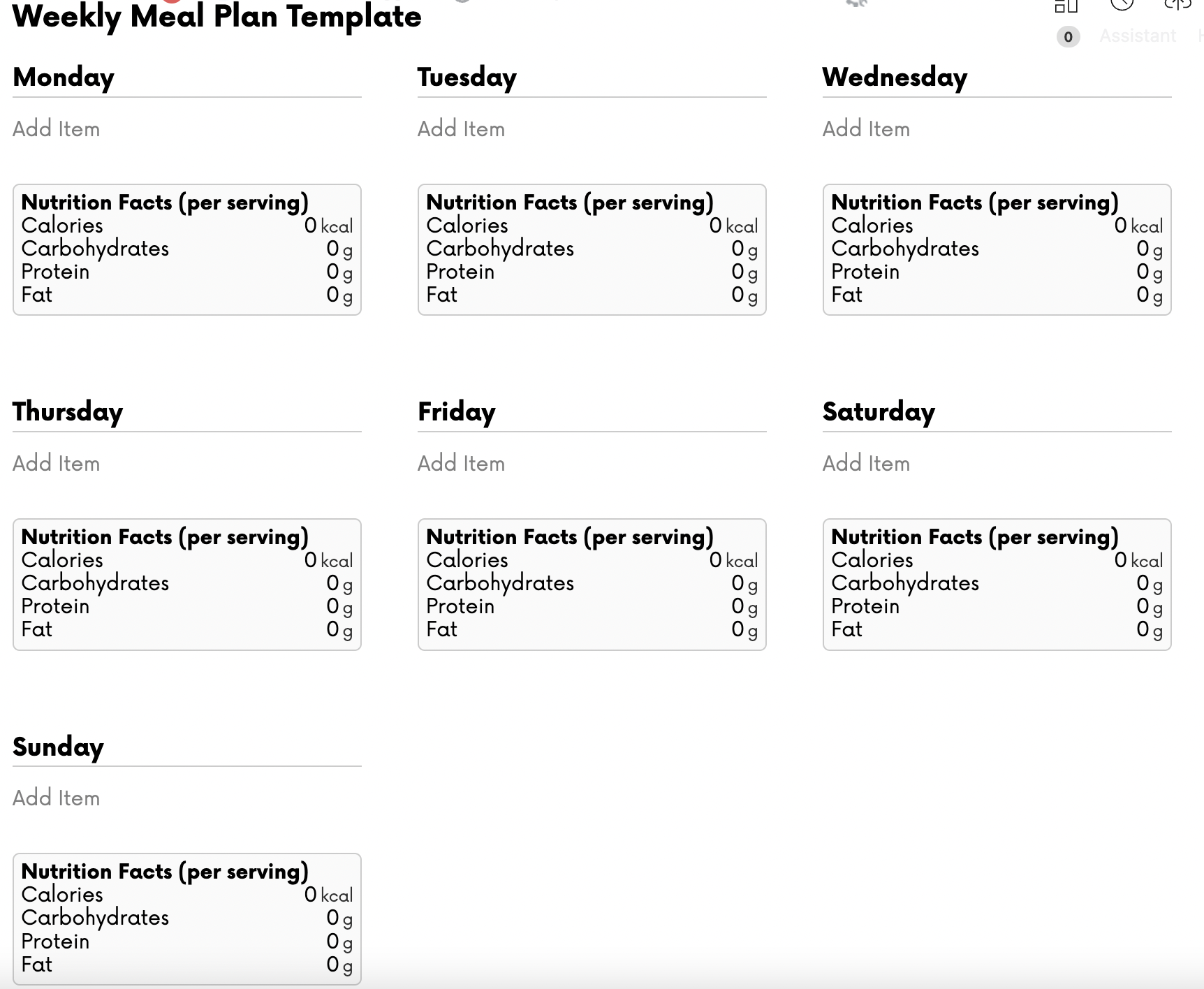
3. Click on ‘Weekly Meal Plan Template’ and it will create a new template to start adding meals under when you open the template. You can change the name of the recipe collection to the date of the week e.g. Week July 13th.
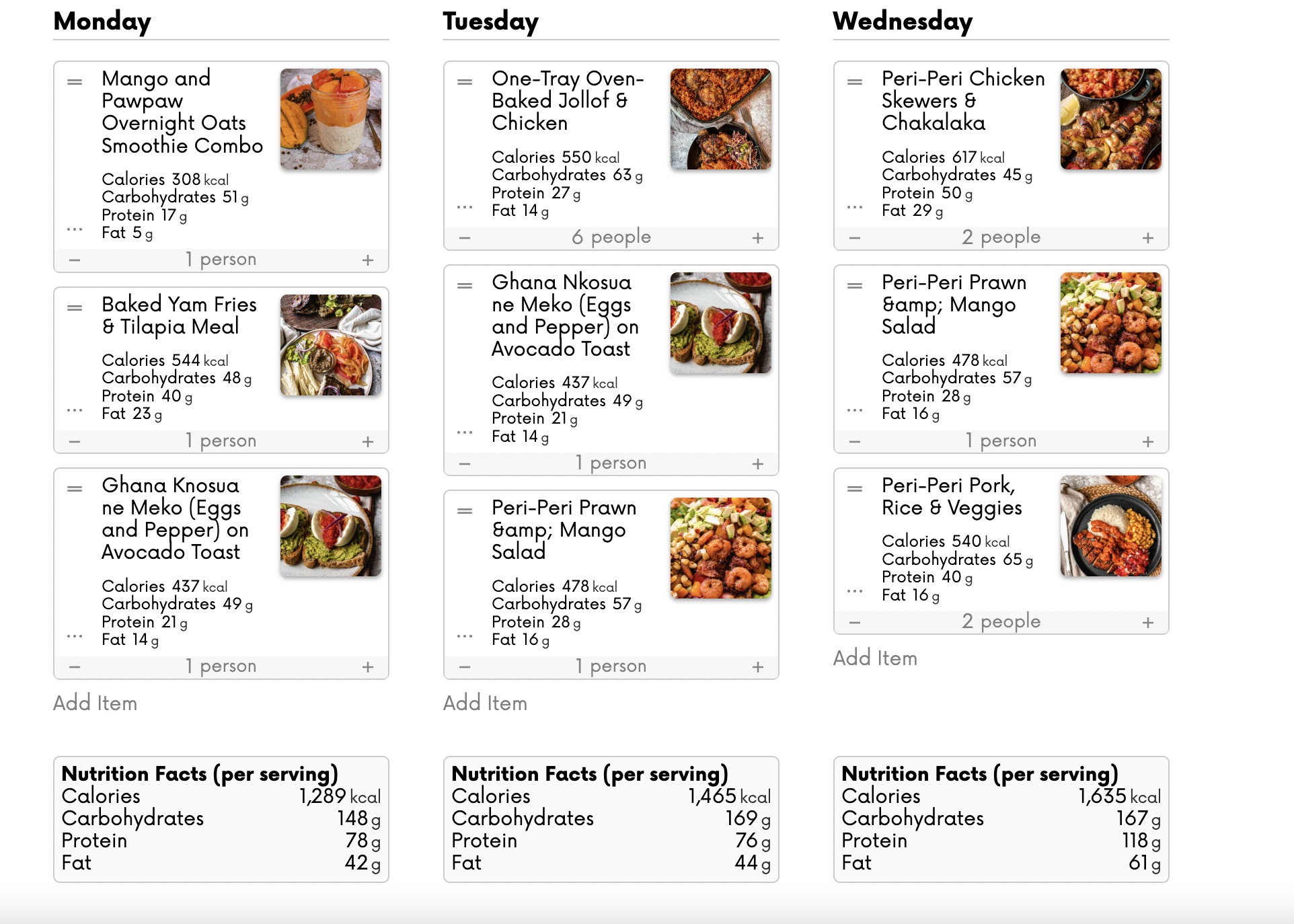
4. You can add meals to each day of the week and calories and macros are auto-generated per meal as below.
3. Meal Plans
Our ‘Meal Plans’ page contains mini challenges and full meal plans and are updated every month like the recipes. You can follow along and view the recipes and shopping lists provided to help with your planning.
4. Community
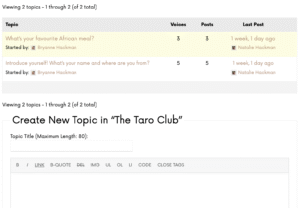
Our ‘Community’ page is where you can engage with other members respectfully in our forum.
There are pre-created discussions that you can contribute to or you can create your own.
The forums are monitored by admin and comments or topics can be removed if they are deemed inappropriate. See the ‘Terms and Conditions’ page for more information.
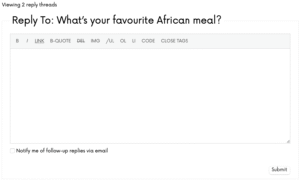
When you click on a topic, you can choose to set notifications for replies, comment to other people’s responses and add certain forums to your ‘favourites’ page which will appear in your Accounts page.
5. Accounts
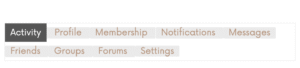
The ‘Account’ page is your own personal profile area where you can access the following features:
Profile- Edit your name, profile photo and cover image. These show up when you interact in forums.
Membership- Edit your information and view and edit your subscriptions and payments.
Notifications- If someone comments directly on your post or you turned notifications on to a forum topic, you will be notified here.
Messages- compose and receive messages from other members.
Friends- you can add fellow members as friends to contact them quicker.
Forums- access your saved forum discussions and view your interactions.
Settings- Edit your general settings
For further support, please email contact@thetaro.org and we will endeavour to respond to your request within 24 hours during the working week.